
Behringer XAir / Midas MR
Direct OSC control for Behringer XR and Midas MR series digital rack mixers.
37 Tool Functions · 10 capabilities · 4 supported models
Capabilities
Everything Showcaller can do with Behringer XAir / Midas MR
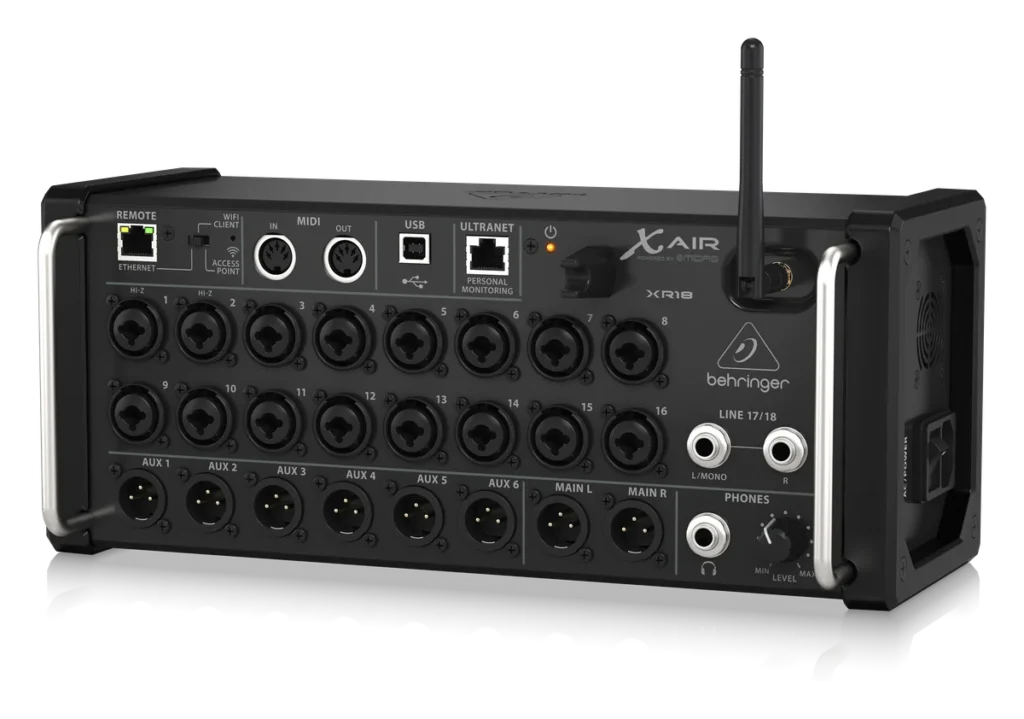
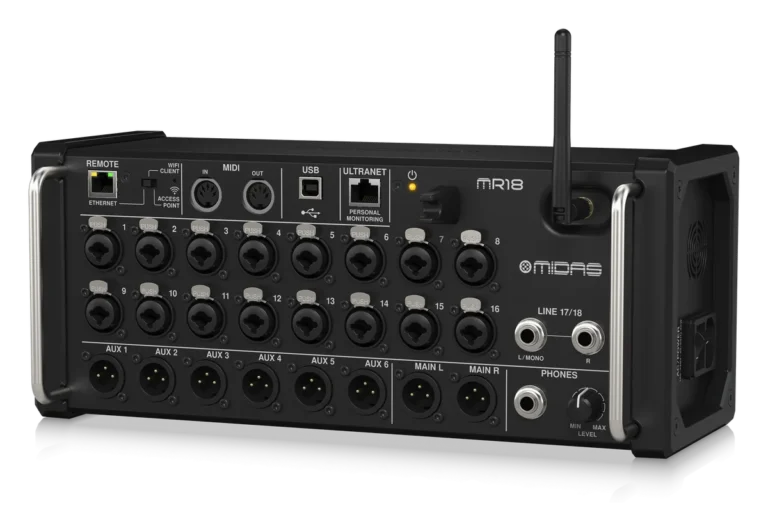
Showcaller AI runs Behringer XAir (XR12, XR18) and Midas MR (MR12, MR18) mixers over the network, by voice or chat. These rack mixers often sit on stage or in a breakout room. Usually nobody stands next to them, so voice control helps. For example, you can mute a channel or bring a presenter up. You can also set a monitor mix or recall the snapshot for the next session.
Badges show the plan a group of Tool Functions is included from. Higher plans include everything below them. Compare plans
How it works
How it works with Behringer XAir / Midas MR
Showcaller connects to the mixer through the Bridge App on your show network. On inputs, it sets faders, mutes and names. It also rides the main LR output and the mix buses, plus each channel's send to them. The XR18 and MR18 have six mix buses, while the XR12 and MR12 have four. Then there are the four DCA groups. On the XLR inputs, Showcaller sets preamp gain and 48V phantom power. It also flips polarity and sets the high-pass filter. Beyond that, it covers the four-band channel EQ, gates and compressors. Finally, it handles sends into the four built-in effects, their return levels, channel colors and snapshots 1 to 64.
After a change, Showcaller reads the mixer back where it can, such as mutes, faders and sends. When the mixer does not agree, it tells you. Showcaller also asks you first before it loads or saves a snapshot, switches phantom power or changes an effects send.
For the most reliable confirmations, connect the mixer to the Bridge App's network by Ethernet. Over Wi-Fi, read-backs can arrive too late, especially on the mixer's own access point in a busy 2.4 GHz room. In that case, Showcaller may report a change as unconfirmed. You can find the hardware on the Behringer XAir product page. For full-size consoles, see the Behringer X32 / Midas M32 integration instead.
Tool Functions
Every Tool Function for Behringer XAir / Midas MR
Grouped by capability, with the plan each group is included from. Where the device reports its state, Showcaller reads the change back before calling it done.
Device DiagnosticsStarter2
Ensure your mixing console is online and responsive. Instantly query the mixer's firmware version, IP address, and active connection state to guarantee a stable FOH setup.
- Get mixer infoSend the mixer an information request and report whether it answered, a quick check that it is reachable.
- Get statusSend the mixer the remote-control hello message; it does not wait for a reply, so it cannot by itself prove the mixer is reachable.
Channel Fader & MuteStarter5
React instantly during live events. Showcaller can mute rogue microphones, adjust specific channel fader levels, and retrieve real-time channel status to stop feedback before it starts.
- Get channel muteRead whether an input channel is muted.
- Get channel stateRead an input channel's fader level, in dB.
- Set channel faderSet an input channel's fader level, in dB.
- Set channel muteMute or unmute an input channel, leaving its fader where it is.
- Set channel nameRename an input channel, as shown on the mixer and in its control apps.
Main LR OutputStarter3
Command the master output of your entire event. Adjust the main fader to ride the room's energy or instantly hit the main mute during changeovers and emergencies.
- Get main muteRead whether the main LR output is muted.
- Set main faderSet the main LR master fader level, in dB.
- Set main muteMute or unmute the main LR output.
Mix Bus ControlStarter4
Manage complex monitor mixes and IFB feeds remotely. Read and adjust overall bus output levels or tweak individual channel-to-bus sends so talent always hears exactly what they need.
- Get bus muteRead whether a mix bus output is muted.
- Set bus faderSet the master fader level of a mix bus, such as a monitor mix, in dB (buses 1-6 on the XR18 and MR18, 1-4 on the XR12 and MR12).
- Set bus muteMute or unmute a mix bus output (buses 1-6 on the XR18 and MR18, 1-4 on the XR12 and MR12).
- Set channel send to busSet how much of an input channel is sent to a mix bus, such as a monitor wedge or in-ear mix.
DCA GroupsPro5
Simplify large-scale mixing. Showcaller lets you control entire groups of instruments or vocalists via DCA faders, muting the entire band or boosting the drum kit with a single command.
- Assign channel to DCAChoose which of the four DCA groups an input channel belongs to, replacing its current assignment.
- Get DCA muteRead whether a DCA group is muted.
- Set DCA faderSet a DCA group master fader level (1-4), moving every channel assigned to it together.
- Set DCA muteMute or unmute a DCA group (1-4).
- Set DCA nameName a DCA group, for example Presenters or Music.
Preamps & InputPro6
Nail your gain staging from the start. Remotely enable +48v phantom power for condenser mics, flip polarity, and adjust the analog headamp gain to prevent digital clipping.
- Get headamp gainRead the preamp gain of one of the mixer's XLR inputs (1-16), in dB.
- Get phantom powerRead whether 48V phantom power is on for one of the mixer's XLR preamp inputs (1-16).
- Set channel invertFlip an input channel's polarity, or set it back to normal.
- Set headamp gainSet the preamp gain of one of the mixer's XLR inputs (1-16), in dB.
- Set high pass filterSwitch an input channel's high-pass filter on or off and set its cutoff between 20 and 400 Hz.
- Set phantom powerSwitch 48V phantom power on or off for one of the mixer's XLR preamp inputs (1-16), for condenser mics and active DI boxes.
Channel EQPro3
Sculpt your mix dynamically. Enable or bypass channel equalization and tweak specific EQ bands to fix muddy vocals or piercing frequencies on the fly.
- Get channel EQ stateRead whether an input channel's EQ is switched in.
- Set channel EQ bandSet the frequency, gain and width of one of an input channel's four EQ bands, and optionally its band type.
- Set channel EQ enabledSwitch an input channel's EQ in or out.
Dynamics (Gate & Compressor)Pro3
Keep your audio tight and controlled. Showcaller allows you to toggle noise gates and compressors to clean up drum bleed and level out dynamic speakers during corporate keynotes.
- Get channel dynamics stateRead whether an input channel's compressor is switched on (the gate is not read).
- Set channel compressorSwitch an input channel's compressor on or off and set its threshold, ratio, attack, release and make-up gain.
- Set channel gateSwitch an input channel's noise gate on or off and set its threshold, attack, release and range.
FX & Advanced RoutingEnterprise4
Add polish to your live sound. Send vocals to reverb engines, adjust effects return faders, and recolor channel scribble strips to keep your console meticulously organized.
- Set AUX return faderSet the fader level of the mixer's aux return channel, in dB.
- Set channel colorSet the colour of an input channel's strip on the mixer and in its control apps.
- Set FX return faderSet the fader level of an effects return (1-4), how much of the processed signal reaches the mix, in dB.
- Set FX send levelSet how much of an input channel is sent into one of the mixer's four effects (FX 1-4), such as a reverb or delay.
Scene ManagementEnterprise2
Transition perfectly between show segments. Use Showcaller to instantly save the current desk state or recall complex predefined scenes, drastically simplifying showtime operation.
- Load sceneRecall a saved snapshot (1-64), changing the whole mix at once.
- Save sceneSave the mixer's current settings as a named snapshot (1-64, name up to 31 characters), overwriting whatever is stored in that slot.
Compatibility
Supported models
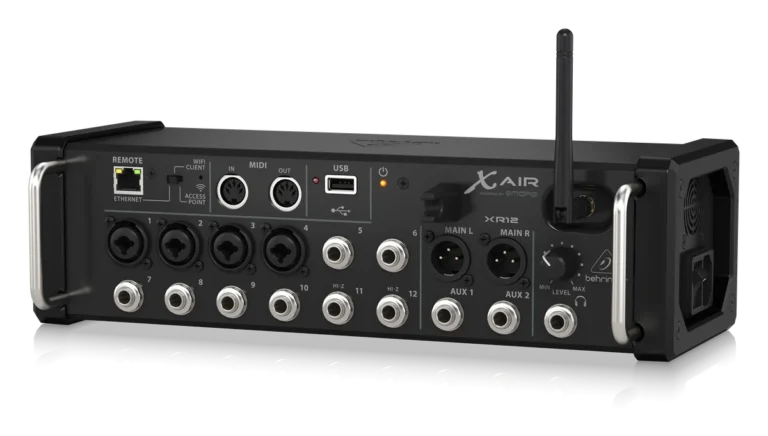
 Behringer XR12Hardware · XAirCompact 12-channel digital mixer control for breakout rooms and small stages.
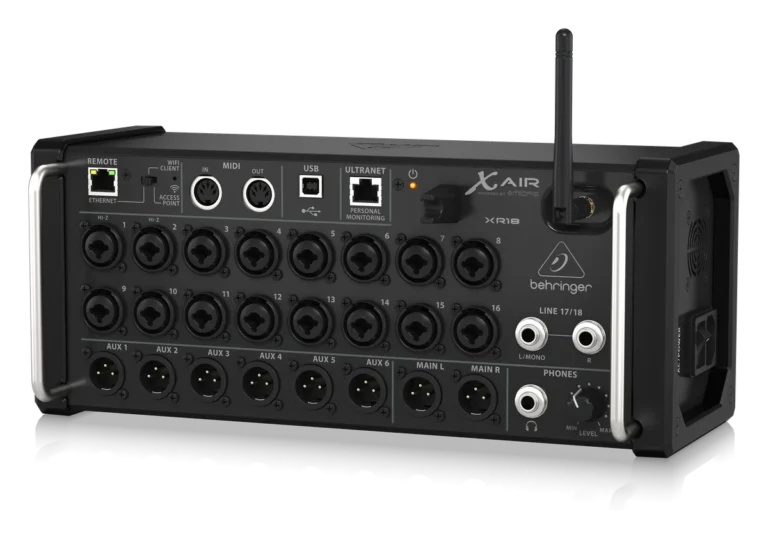
 Behringer XR18Hardware · XAirRemote control for the popular 18-in/18-out stage box mixer.
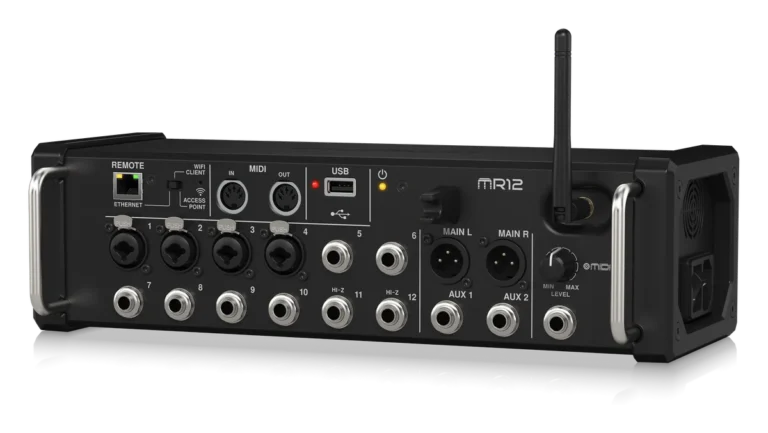
 Midas MR12Hardware · XAirPremium 12-channel digital mixer control for corporate AV.
 Midas MR18Hardware · XAirHigh-end 18-channel stage box mixer integration for professional AV.
FAQ
Questions about Behringer XAir and Midas MR control
Which mixers are supported?
Showcaller supports the Behringer XAir XR12 and XR18, and the Midas MR12 and MR18.
What do I need to connect the mixer?
You need the mixer's IP address, with port 10024 by default, and the model. You also need the Showcaller Bridge App on a computer on the same network. We recommend a wired Ethernet link over Wi-Fi.
Which plan includes which Tool Functions?
Starter includes Device Diagnostics, Channel Fader & Mute, Main LR Output and Mix Bus Control (14 Tool Functions). Pro adds DCA Groups, Preamps & Input, Channel EQ, and Dynamics (17 more). Enterprise then adds FX & Advanced Routing and Scene Management (6 more). Each plan includes every Tool Function of the plans below it. See pricing for the plans.
Why does the model matter?
The XR12 and MR12 have fewer mix buses than the XR18 and MR18. So the model sets which buses Showcaller offers.
Does Showcaller read the gate settings back?
Not yet. It reads whether a channel's compressor is on. However, it does not read the gate state back.