
Bitfocus Companion
Full REST API integration for Bitfocus Companion. Trigger custom buttons, manage pages, and read internal custom variables.
12 Tool Functions · 3 capabilities · 1 supported version
Capabilities
Everything Showcaller can do with Bitfocus Companion
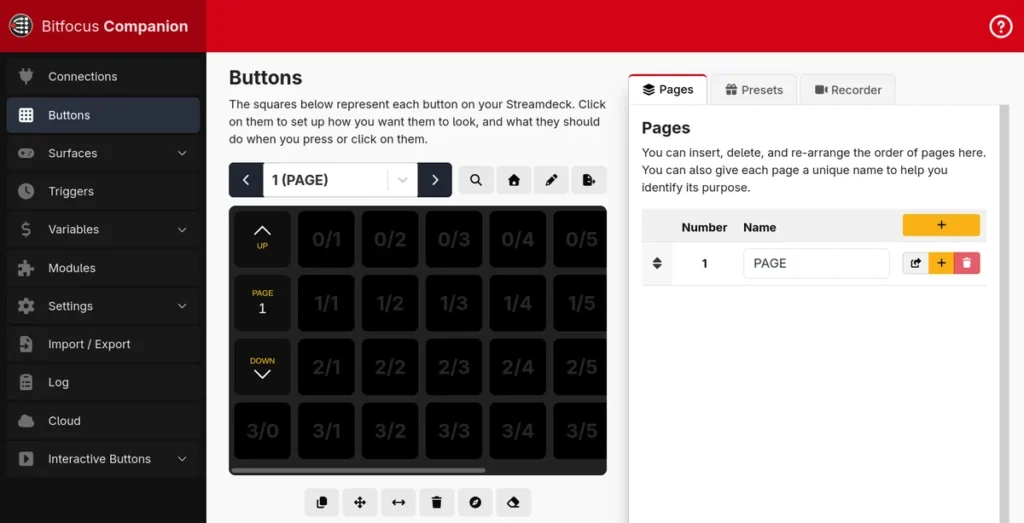
Bitfocus Companion already drives much of the gear in a lot of control rooms. Showcaller AI lets you use what your team built there by voice or chat. For example, it can press a Companion button, or hold it and release it. It can also turn an encoder button left or right. When a button has several steps, Showcaller can move it to a chosen step. It can even change a button's text and color, after you confirm.
Badges show the plan a group of Tool Functions is included from. Higher plans include everything below them. Compare plans
How it works
How it works with Bitfocus Companion
Showcaller can also read and set Companion's custom variables. Your buttons and triggers may depend on such a value. Examples are a presenter name, a segment number or a mode flag. So you can change that value just by asking. Showcaller also reads the variables that Companion's own connections publish, such as a device's status. It lists the connections in Companion with their module and enabled state. Finally, it can ask Companion to rescan for USB control surfaces such as Stream Deck panels.
That makes Companion a way to reach devices Showcaller does not control directly. If Companion has a module for the device, your team can build a button for the action. Then Showcaller can press that button.
Showcaller talks to Companion over your local network through the Bridge App. A button press runs whatever actions sit on that button in Companion. Showcaller reports that Companion accepted the press. However, it does not check what the devices behind the button did. Showcaller supports Companion 4.3 and later, including 5.x. You can find Companion itself on the Bitfocus Companion site.
Tool Functions
Every Tool Function for Bitfocus Companion
Grouped by capability, with the plan each group is included from. Where the device reports its state, Showcaller reads the change back before calling it done.
Companion Control EssentialsStarter5
Virtualize your Stream Deck. Press, hold, or release predefined Companion buttons remotely. Showcaller enables directors to fire lighting cues, video playback, and complex transition macros simultaneously with zero physical touch.
- Button downPresses and holds a Companion button, running only its press actions.
- Button upReleases a held Companion button, running its release actions.
- Get custom variable valueReads the current value of one of Companion's custom variables.
- List instancesLists the connections set up in Companion with their module and whether each is enabled; needs Companion 4.3 or newer.
- Press buttonPresses and releases a Companion button, running its press and release actions.
Companion ProgrammingPro5
Modify dynamic lower-thirds and production text instantly. Instruct Showcaller to overwrite specific Companion Custom Variables, altering what your hardware displays or feeding dynamic text to your character generators.
- Rotate button leftRuns a Companion button's rotate-left actions, as if its encoder were turned left.
- Rotate button rightRuns a Companion button's rotate-right actions, as if its encoder were turned right.
- Set button stepMoves a multi-step Companion button to a chosen step.
- Set button styleChanges a Companion button's text, colours or font size.
- Set custom variable valueSets the value of one of Companion's custom variables.
Companion Diagnostics & AdminEnterprise2
Maintain the connection layer seamlessly. Showcaller can force a hardware rescan of physical Stream Decks or remotely trigger Companion's internal status checks for ultimate peace of mind.
- Get module variable valueReads a variable published by one of Companion's connections, such as a device's status.
- Rescan surfacesMakes Companion look again for USB control surfaces such as Stream Deck panels.
Compatibility
Supported versions
 Companion v4.3+ / v5.xSoftware · 4.3+Control Bitfocus Companion configurations, custom buttons, and variable environments.
FAQ
Questions about Bitfocus Companion
Which versions of Companion are supported?
Showcaller supports Companion 4.3 and later, including 5.x. Button, variable and surface functions also work on earlier 4.x builds. Only listing Companion's connections needs 4.3 or later.
What do I need to set up?
Run Companion with HTTP remote control turned on. Showcaller needs its host IP address and port, which is 8000 by default. You also need the Showcaller Bridge App on a computer on the same network.
Which plan includes which Tool Functions?
Starter includes Companion Control Essentials (5 Tool Functions). It lets you press, hold and release buttons, read custom variables and list connections. Pro adds Companion Programming (5 more). It covers rotating buttons, setting button steps and styles, and setting custom variables. Enterprise adds Companion Diagnostics & Admin (2 more). It reads connection variables and rescans USB surfaces. Each plan includes every Tool Function of the plans below it. See pricing for the plans themselves.
Can Showcaller switch Companion pages?
No. Showcaller works with buttons, variables, connections and surfaces. It has no page-switching function.
Does Showcaller confirm what a button did?
It confirms that Companion accepted the request. What the button then does on your devices depends on the actions in Companion. Showcaller does not read those devices back through Companion. So if a device also has a direct Showcaller integration, use that for confirmed control.