
ProPresenter
Run ProPresenter by voice: slides, clears, playlists, timers, stage messages, looks and capture, with the live slide text read back.
179 Tool Functions · 20 capabilities · 1 supported version
Capabilities
Everything Showcaller can do with ProPresenter
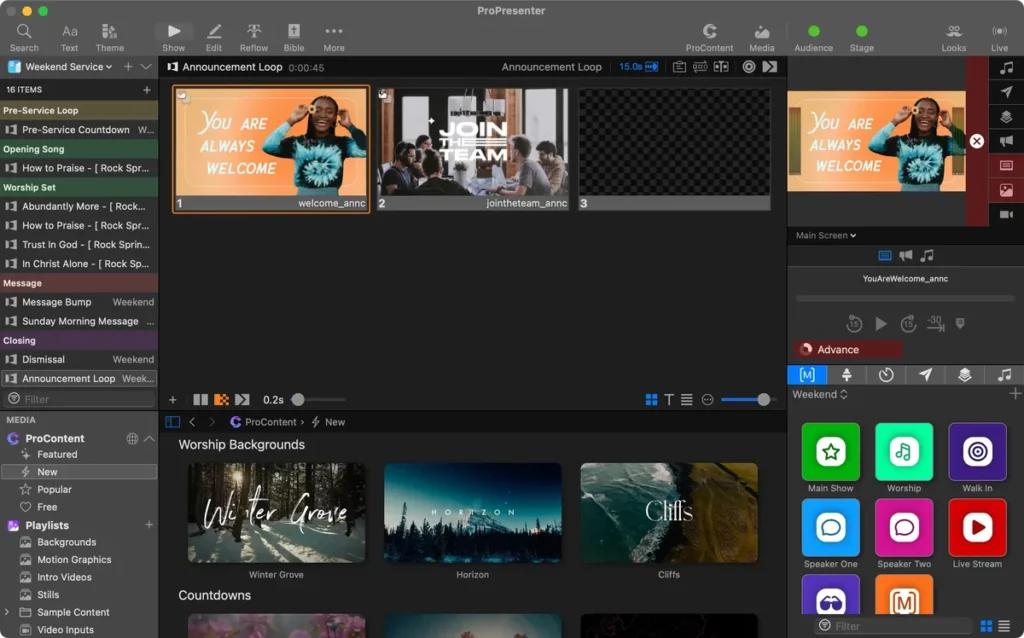
One volunteer with no spare hands often runs ProPresenter from a single booth computer. Showcaller AI gives that person ProPresenter remote control by voice or chat. So they can just say next slide or jump to the last chorus. They can also clear the slide layer without killing the background video. Or they can put "two minutes" on the pastor's confidence monitor and add time to the countdown. They can even fire the Clear Group the church already built, or start the recording.
Badges show the plan a group of Tool Functions is included from. Higher plans include everything below them. Compare plans
How it works
How it works with ProPresenter
Showcaller uses the official network API from Renewed Vision for ProPresenter 7.9 and later. It connects through the Bridge App on your network. Showcaller does not emulate or screen-scrape anything. It reads as well as it writes. For example, it reads the text on screen now and the text coming next. It also sees which layers are live, which look is active, and whether capture is running and for how long. So you can ask what is happening instead of guessing. After a change, Showcaller reads ProPresenter back to confirm it landed.
Live control covers slides and presentations, clears and screens, and playlists. It also covers transport for the presentation, announcement and audio layers. Timers and countdowns, messages and macros are part of it too. Showcaller also runs media and audio playlists, the announcement layer, and stage display messages and layouts. Finally, it handles props, audience looks and the library. It also covers recording, streaming and video inputs.
For building next week's service, Showcaller can also create playlists and organize collections. It can create, edit or delete saved timers, looks and messages. The same goes for props, macros and clear groups. Those changes affect saved configuration for every service that follows. So they are Enterprise-only, and Showcaller always confirms them with you first.
Tool Functions
Every Tool Function for ProPresenter
Grouped by capability, with the plan each group is included from. Where the device reports its state, Showcaller reads the change back before calling it done.
Slide & Presentation ControlStarter16
The heart of running a service from ProPresenter. Showcaller advances lyrics and sermon slides on voice command, jumps straight to a numbered slide or a named song group, and - crucially - reads back the text that is actually on the screen and the text that is queued next, so the operator can confirm the congregation is seeing what the worship leader expects before the next line lands.
- Focus presentationSelect the next, previous or live presentation in ProPresenter without changing what is on screen.
- Get active presentationReport which presentation is live on the audience screens, by name, with its file path and slide groups.
- Get focused presentationReport which presentation is selected in ProPresenter, which is often not the one on screen.
- Get presentationRead a presentation's name, file path and slide groups without putting it on screen.
- Get presentation timelineReport whether the live or selected presentation's timeline is running and where its playhead is.
- Get slide indexReport which slide number is live, counting from zero, and which presentation it belongs to.
- Get slide textReturns the words on screen right now and the words queued next, plus each slide's presenter notes.
- Pause presentation timelinePause a presentation's timeline, leaving the current slide on screen.
- Play presentation timelineStart a presentation's timeline so its slides advance on their own timings.
- Retrigger presentationRestart the live presentation from its first slide: start the song again from the top.
- Rewind presentation timelineReturn a presentation's timeline to the start without starting it playing.
- Trigger next slideAdvance one slide in the live presentation, or in the one selected in ProPresenter.
- Trigger presentationPut the presentation selected in ProPresenter, or a specific one, on screen from its first slide.
- Trigger presentation groupJump to a song section such as Chorus, Bridge or Verse 2 by the group name the worship team uses.
- Trigger previous slideStep back one slide in the live presentation, or in the one selected in ProPresenter.
- Trigger slide by indexJump straight to a slide by its number, counting from zero, in the live or selected presentation.
Clear & BlankStarter12
The panic button, done properly. Clear the slide layer without killing the background video, fire the Clear Group the church already built for 'end of worship', or take the audience screens down entirely - each as a single spoken instruction, with the layer status read back so nobody is guessing whether the lyrics really left the screen.
- Clear announcements layerClear the announcement layer, taking the announcement loop off screen.
- Clear audio layerClear ProPresenter's audio layer, stopping the pre-service music or underscore it is playing.
- Clear media layerClear the background media layer, such as a motion background or bumper, without touching the words on top.
- Clear messages layerClear every message on screen at once, rather than taking them down one by one.
- Clear props layerClear every prop at once: lower thirds, giving codes and scripture references.
- Clear slide layerClear the slide layer, taking the words off screen while background media, props and audio stay put.
- Clear video input layerClear the video input layer, taking the camera, capture card or NDI feed off the audience screens.
- Get clear groupRead which layers a clear group takes down and whether it stops running timelines.
- List clear groupsList the clear groups the church has built, such as Clear All, by name and icon.
- Set audience screens enabledTurn every audience screen on or off at once, whatever the layers are doing.
- Set stage screens enabledTurn the stage screens on or off without touching what the audience sees.
- Trigger clear groupFire one of the church's own clear groups, such as Clear All, by name.
Status & ScreensStarter7
Everything the AI needs to know the room's real state before it touches anything. Which layers are live, whether the audience and stage screens are enabled, what screens are configured, and which ProPresenter build is answering. These reads feed the Digital Twin, so the operator's next instruction is judged against the machine's state rather than against an assumption.
- Find my mouseMove the ProPresenter computer's mouse pointer to the centre of its screen to find a lost cursor.
- Get audience screens enabledReport whether the audience screen output is turned on.
- Get layer statusReport which layers are live right now: slide, media, announcements, props, messages, audio and video input.
- Get stage screens enabledReport whether the stage screens, the confidence monitors, are turned on.
- Get versionReport the ProPresenter computer's name, platform, operating system and the ProPresenter build it is running.
- List global groupsList the slide groups the church has defined, such as Verse, Chorus and Bridge, with their colours.
- List screensList the audience and stage screens ProPresenter has set up, by name and number.
Transport ControlStarter10
Transport for the three layers ProPresenter can actually play: the presentation, the announcement loop, and the audio bed. Pause the bumper video, skip thirty seconds into a testimony reel, drop the playhead on an exact timecode, or cancel an auto-advance that is about to fire mid-sentence - and read the playhead position back to prove it landed.
- Cancel auto advanceCancel a pending auto-advance on the presentation or announcement layer so the slide stays put.
- Get auto advanceReport whether the presentation or announcement layer is about to advance by itself, and how long is left.
- Get transport currentReport the name, artist, length and play state of what is on the presentation, announcement or audio layer.
- Get transport timeReport the playhead position in seconds on the presentation, announcement or audio layer.
- Go to layer endJump a layer's playhead to the end of the current clip so it finishes rather than being cleared.
- Pause layerPause the presentation, announcement or audio layer, leaving the frame on screen.
- Play layerPlay or resume the presentation, announcement or audio layer.
- Seek layer to timeMove the playhead on the presentation, announcement or audio layer to an exact time in seconds.
- Skip layer backwardSkip the presentation, announcement or audio layer back by a number of seconds.
- Skip layer forwardSkip the presentation, announcement or audio layer forward by a number of seconds.
Timers & CountdownsStarter13
Church services run on countdowns, and the countdown is usually the thing nobody can reach. Showcaller starts the pre-service countdown, adds two minutes when the band overruns, resets the sermon timer, and reads every timer's current value and run state back on request - including the video countdown that tells the stage how long the clip has left.
- Adjust timerAdd or take away seconds on a running timer, such as two more minutes for the band.
- Get system timeRead the ProPresenter computer's current clock time.
- Get timerRead one timer's saved setup: countdown length, target time of day or elapsed window, and whether it may overrun.
- Get timers currentReport every timer's current value and whether it is stopped, running, complete or overrunning.
- Get video countdownRead how much time is left on the media clip currently playing.
- List timersList the configured timers by name, with each countdown's length and whether it may overrun.
- Reset all timersReset every timer to its configured start value without starting any of them.
- Reset timerReset a timer to its configured start value without starting it.
- Start all timersStart every configured timer at once, such as the countdown and stage clock together.
- Start countdownSet a timer to a countdown of a given length and start it in one step, overwriting its saved duration.
- Start timerStart a timer by name: countdowns count down from their set length, elapsed timers count up.
- Stop all timersStop every configured timer at once, leaving their values where they are.
- Stop timerStop a timer and leave its current value showing.
MessagesStarter5
The 'please move your car' layer. Showcaller shows a pre-built ProPresenter message, fills its tokens with the words the operator just said, and clears it again - without anybody walking to the booth. Messages stay where the church designed them, themed and positioned; only the trigger and the token text move.
- Clear messageTake one message off screen, leaving any others up.
- Get messageRead one message's text, its token names and whether it is showing right now.
- List messagesList the saved messages by name, with each one's text and whether it is showing.
- Show messageShow a saved message on screen, optionally filling one of its text tokens with the operator's words.
- Show message with tokensShow a saved message with several tokens filled at once, including timer and countdown tokens.
MacrosStarter5
Most churches have already encoded their service in macros. Showcaller finds the right one by the name the operator uses - 'go to worship look', 'kill everything' - and fires it, rather than trying to rebuild the same sequence out of primitives. Macro collections are readable too, so the AI can tell the operator what is available before it guesses.
- Get macroLook up one macro and report its name and position in the list, to check it exists before firing it.
- Get macro collectionRead one macro collection and the macros inside it, by name.
- List macro collectionsList the macro collections, the folders the church's macros are grouped into.
- List macrosList the macros the church has already built, by name and position in the list.
- Trigger macroFire one of the church's own macros by name, running whatever it was built to do.
Media PlaybackPro11
Bumpers, sermon illustrations, and walk-in loops live in ProPresenter's media playlists. Showcaller focuses the right playlist, triggers the next or a named item, and reads the playlist contents back so the operator can ask what is in it. Paired with Transport Control this is full playback control over the church's video bed without touching the keyboard.
- Focus media playlistSelect the next, previous or active media playlist, or one by name, without playing anything.
- Get active media playlistReport which media playlist the clip now playing came from.
- Get focused media playlistReport which media playlist is selected in ProPresenter.
- Get media playlistList the clips in one media playlist, with each clip's name and length.
- List media playlistsList the media playlists where the bumpers, walk-in loops and video clips live.
- Trigger media itemPlay a named clip from a media playlist, such as the offering video or the baptism reel.
- Trigger media playlistStart a media playlist from its first clip: the selected one, the active one, or one by name.
- Trigger next mediaFire the next clip in the active media playlist, such as the next bumper.
- Trigger next media itemAdvance a media playlist one clip: the active one by default, the selected one, or one by name.
- Trigger previous mediaFire the previous clip in the active media playlist.
- Trigger previous media itemStep a media playlist back one clip: the active one by default, the selected one, or one by name.
Audio PlaybackPro11
The audio bed - pre-service music, offering underscore, altar-call pads - handled the same way as media. Showcaller focuses an audio playlist, triggers the next track or a specific one, and reads the playlist back. Stop and start come from Transport Control, so a spoken 'pause the music' and 'read me the playlist' both land on the same layer.
- Focus audio playlistSelect the next, previous or active audio playlist, or one by name, without playing anything.
- Get active audio playlistReport which audio playlist the track now playing came from.
- Get audio playlistList the tracks in one audio playlist, with each track's artist and length.
- Get focused audio playlistReport which audio playlist is selected in ProPresenter.
- List audio playlistsList the audio playlists, such as pre-service music and offering underscores.
- Trigger audio itemPlay a named track from an audio playlist, such as the offering underscore or an altar-call pad.
- Trigger audio playlistStart an audio playlist from its first track: the selected one, the active one, or one by name.
- Trigger next audioSkip to the next track in the active audio playlist.
- Trigger next audio itemAdvance an audio playlist one track: the active one by default, the selected one, or one by name.
- Trigger previous audioStep back to the previous track in the active audio playlist.
- Trigger previous audio itemStep an audio playlist back one track: the active one by default, the selected one, or one by name.
AnnouncementsPro11
ProPresenter's announcement layer runs its own presentation on its own timeline, and on a Sunday it is usually looping in the foyer while something else is live in the room. Showcaller advances it, retriggers it, jumps it to a slide, and drives its timeline - all without disturbing the presentation the congregation is watching.
- Focus active announcementSelect the running announcement presentation in ProPresenter without changing what is on screen.
- Get active announcementReport which announcement presentation is running on the announcement layer, by name.
- Get announcement slide indexReport which slide of the announcement loop is showing, counting from zero.
- Get announcement timelineReport whether the announcement loop's timeline is running and where its playhead is.
- Pause announcement timelinePause the announcement loop's timeline, leaving its current slide showing.
- Play announcement timelineStart the announcement loop's timeline so its slides advance on their own timings.
- Retrigger announcementRestart the announcement loop from its first slide.
- Rewind announcement timelineReturn the announcement loop's timeline to the start without starting it playing.
- Trigger announcement slide by indexJump the announcement loop to a slide by its number, counting from zero.
- Trigger next announcement slideAdvance the announcement loop one slide without touching the live presentation.
- Trigger previous announcement slideStep the announcement loop back one slide without touching the live presentation.
Stage DisplayPro9
The confidence monitor is how the booth talks to the platform, and it is the one screen the person on stage cannot fix. Showcaller puts a stage message up - 'wrap up', 'two minutes', 'mic is hot' - takes it down, and swaps stage layouts per screen, so the pastor sees sermon notes and the band sees lyrics and chords.
- Get stage layout mapReport which stage layout each stage screen is showing, screen by screen.
- Get stage messageRead the text showing on the confidence monitors; an empty answer means no stage message is up.
- Get stage screen layoutReport which stage layout one stage screen is showing.
- Hide stage messageClear the stage message from the confidence monitors.
- List stage layoutsList the stage layouts the church has designed, such as Sermon Notes or Lyrics and Chords.
- List stage screensList the stage screens ProPresenter drives, by name and number.
- Set stage layout mapSet the stage layout on several stage screens in one step from a screen-to-layout list.
- Set stage screen layoutChange which stage layout one stage screen shows, such as sermon notes or lyrics with chords.
- Show stage messagePut a line of text such as "wrap up" on the confidence monitors, where only the platform sees it.
Props & OverlaysPro8
Props are ProPresenter's lower thirds and overlays: the speaker's name, the giving QR code, the scripture reference. Showcaller brings one up, clears it, and - the part nobody can reach in a hurry - pauses its auto-clear countdown so a name stays on screen while the introduction runs long.
- Clear propTake one prop down by name, leaving any others up.
- Get propRead whether one prop, such as a lower third, is showing right now.
- Get prop collectionRead one prop collection and the props inside it, by name.
- List prop collectionsList the prop collections, the folders the church's props are grouped into.
- List propsList the props, such as lower thirds, giving codes and scripture references, and whether each is showing.
- Pause prop auto clearPause a prop's auto-clear so it stays up past its set time.
- Resume prop auto clearResume a prop's paused auto-clear so it clears itself as configured.
- Trigger propBring a prop up on screen, such as a speaker's name, a giving QR code or a scripture reference.
Audience LooksPro4
A Look decides which layers each audience screen is actually showing, which makes it the fastest way to change the whole room at once. Showcaller triggers the saved look by the name the church gave it - 'worship', 'sermon', 'baptism' - and reads the live look back so the operator can hear what changed.
- Get current lookReport the live audience look and which layers it lets each audience screen show.
- Get lookRead which layers a saved look lets each audience screen show, without applying it.
- List looksList the saved audience looks, such as Worship or Sermon, by name.
- Trigger lookSwitch to a saved audience look, such as Worship or Sermon, by name.
Recording & StreamingPro5
ProPresenter's capture engine records to disk and streams to RTMP or Resi, and forgetting to start it is the single most expensive mistake in a church service. Showcaller starts and stops it on command, reads the running time back, and reports the configured encodings, so 'are we recording?' has a real answer.
- Get capture settingsReport whether capture is set to record to disk or stream over RTMP or Resi, and with which encoding.
- Get capture statusReport whether ProPresenter is recording or streaming, for how long, and any status message.
- List capture encodingsList the capture presets available for one destination: recording to disk or a streaming service.
- Start captureStart ProPresenter recording or streaming, whichever it is set up for.
- Stop captureStop ProPresenter recording or streaming, ending the capture that is running.
LibraryPro4
The library is the church's song and sermon archive. Showcaller lists what is in it and triggers a presentation - or one specific cue inside it - directly, which is the fastest route to an unplanned song request from the platform: name it, and the first verse is on screen without anyone building a playlist item.
- List librariesList the ProPresenter libraries, such as the song and sermon libraries.
- List library itemsList every presentation in one library by name, to find a song that is not in the playlist.
- Trigger library presentationPut any presentation from a library on screen from its first slide, with no playlist needed.
- Trigger library presentation cuePut one numbered slide of a library presentation straight on screen, counting from zero.
Video InputsPro2
ProPresenter's video input playlist is how a camera, a capture card, or an NDI feed reaches the audience screens. Showcaller lists what is wired up and switches to one on command - the spoken equivalent of going to the live camera when the baptism starts.
- List video inputsList the cameras, capture cards and NDI feeds ProPresenter can put on screen.
- Trigger video inputPut a camera, capture card or NDI feed on the audience screens.
Themes & MasksEnterprise6
Themes and masks are the design layer underneath every slide the church shows, and editing one changes saved show data rather than what is live. Showcaller exposes them read-first, so a designer can ask what a theme slide is actually configured to do before anything is rewritten, and the write is an explicit, confirmed act.
- Get maskLook up one mask by name or number and report its name.
- Get themeRead one theme and the theme slides inside it, by name.
- Get theme slideLook up one theme slide within a theme and report its name.
- List masksList the masks ProPresenter uses to shape its output, by name.
- List themesList the themes behind the church's slide designs, by name.
- Set theme slideReplace a theme slide's saved design, which changes every slide built on it.
Playlist & Collection AdminEnterprise9
Building next Sunday rather than running this one. Showcaller creates the service playlist and its folders, replaces a playlist's contents wholesale, and organises macro and prop collections. Every one of these rewrites saved ProPresenter data, so they sit behind the enterprise tier and behind an operator confirmation, away from Sunday morning.
- Create macro collectionCreate a new named macro collection to group macros.
- Create playlistCreate a new top-level playlist or playlist folder by name.
- Create playlist underCreate a playlist or folder inside an existing playlist folder.
- Create prop collectionCreate a new named prop collection to group props.
- Delete macro collectionDelete a macro collection along with every macro inside it.
- Delete prop collectionDelete a prop collection along with every prop inside it.
- Set macro collectionRedefine a macro collection, including which macros it holds.
- Set playlist contentsReplace a playlist's entire running order; any item not in the new list is removed.
- Set prop collectionRedefine a prop collection, including which props it holds.
Configuration AdminEnterprise18
The destructive half of the ProPresenter API, kept in one place where it can be gated as one thing. Creating a countdown, redefining a look, or deleting a macro changes the church's saved configuration for every service that follows, not just this one. Every function here is enterprise-tier, confirmation-gated, and documented with the exact JSON the ProPresenter API expects.
- Create clear groupBuild a new clear group, choosing which layers it clears and whether it stops running timelines.
- Create countdown timerCreate a new named countdown timer of a set length.
- Create lookCreate a saved audience look that sets which layers each audience screen may show.
- Create messageCreate a new message template with its text, tokens and theme.
- Delete clear groupDelete one of the saved clear groups from ProPresenter permanently.
- Delete lookDelete a saved audience look from ProPresenter permanently.
- Delete macroDelete a saved macro from ProPresenter permanently.
- Delete messageDelete a saved message template from ProPresenter permanently.
- Delete propDelete a saved prop, such as a lower third, from ProPresenter permanently.
- Delete stage layoutDelete a saved stage layout from ProPresenter permanently.
- Delete timerDelete a timer and its saved setup from ProPresenter permanently.
- Set clear groupRedefine an existing clear group, changing which layers it clears.
- Set current lookRewrite the live audience look in place, changing what the audience screens show at once.
- Set lookRedefine a saved audience look without making it live.
- Set macroRewrite what a saved macro does every time it is fired.
- Set messageRewrite a saved message's text, tokens or theme for every service that follows.
- Set propRewrite a prop's saved definition, including how long it stays up before clearing itself.
- Set timer configRedefine a timer as a countdown, a count down to a time of day, or an elapsed stopwatch.
Compatibility
Supported versions
 ProPresenter 7Software · 7.9+Full control of ProPresenter 7.9+ on Mac or Windows through Renewed Vision's own documented REST API.

FAQ
Questions about ProPresenter remote control
Which versions of ProPresenter are supported?
Showcaller supports ProPresenter 7.9 and later, on Mac or Windows. Earlier versions do not have the network API that Showcaller uses.
What do I need to set up?
In ProPresenter, open Preferences > Network and turn on the "Enable Network" option. Then note the port, which is 1025 by default. Showcaller needs the IP address or hostname of the ProPresenter computer and that port. You also need the Showcaller Bridge App on a computer on the same network. Showcaller needs no username or password.
Which plan includes which Tool Functions?
Starter includes Slide & Presentation Control, Clear & Blank, Playlist Navigation and Status & Screens. It also includes Transport Control, Timers & Countdowns, Messages and Macros (81 Tool Functions). Pro adds Media Playback, Audio Playback, Announcements and Stage Display. Pro also adds Props & Overlays, Audience Looks, Recording & Streaming, Library and Video Inputs (65 more). Enterprise adds Themes & Masks, Playlist & Collection Admin and Configuration Admin (33 more). Each plan includes every Tool Function of the plans below it. See pricing for the plans themselves.
Can a volunteer break the church's saved setup by voice?
Changes to saved configuration are Enterprise-only, and Showcaller always asks for confirmation before they run. These include creating, editing or deleting looks, timers and messages. The same applies to props, macros, clear groups and playlists. Live operation, such as slides, clears and timers, does not change saved data.
Does Showcaller know what is on screen?
Yes. It reads the current and next slide text from ProPresenter. It also reads which layers are live, the active look and the capture status.