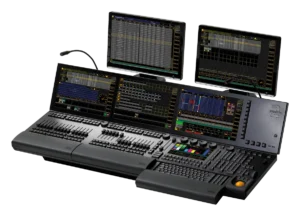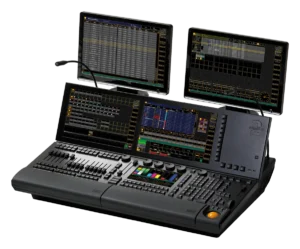
MA Lighting grandMA2 onPC
Showcaller AI controls grandMA2 onPC, the free Windows version of the grandMA2 software. It fires cues, sets executor faders, switches pages and runs macros. It connects to the onPC computer over your network.

Overview
The MA Lighting grandMA2 onPC with Showcaller
grandMA2 onPC is the grandMA2 console software running on a Windows computer. MA Lighting describes it as the same software as the console, with all of its functions. It is free, and MA now lists it in its product archive. With an onPC wing or node, it runs a show or backs up a console. Showcaller AI connects to grandMA2 onPC over the network through the Bridge App. Then it runs playback by voice or chat. The MA Lighting grandMA2 integration page lists every function.
Setting up grandMA2 onPC for Showcaller
On a laptop, the network setup needs a little more care than on a console. First, enable Telnet in grandMA2 onPC under Setup, Console, Global Settings. Set it to Login Enabled. Next, give Showcaller the IP address of the network adapter on your show network. The Telnet remote uses port 30000, not the usual Telnet port 23. So any firewall on the computer must let the Bridge App reach that port. Finally, choose a user from the show file for Showcaller to log in as.
What grandMA2 onPC control covers
The functions match the grandMA2 consoles. In every plan, Showcaller fires Go, jumps to a cue, steps back, pauses or turns a sequence off. It also runs macros by number. Then, with Pro, it presses executors, sets their faders and switches the executor page. This helps when the laptop has no fader wing, because you can name any executor. Enterprise adds the command line for anything else. As always, macros, command-line use and Off commands need your confirmation.
Replies and read-back
Showcaller reads every reply from the software. Therefore it reports a refused command as a failure. It also reads page changes back. However, it cannot read playback state yet, so it reports a Go as accepted, not as seen on stage. For details, see MA Lighting’s grandMA2 onPC page.
What you can do
Run the MA Lighting grandMA2 onPC by voice or chat
Executors without a fader wing
Name any executor by page and number. Press Go or Off, or set its fader from 0 to 100 percent. Pro.
Cue playback by voice
Fire Go, jump to a cue, step back a cue, pause or resume a sequence, or turn it off. Starter.
Page changes, confirmed
Switch the active executor page. Showcaller reads it back from onPC to confirm it. Pro.
Macros and command line
Run a macro by number (Starter) or type any grandMA2 command (Enterprise). You confirm each one first.
Specifications
MA Lighting grandMA2 onPC at a glance
Software
- Type
- grandMA2 console software for a PC or notebook; all functions of the grandMA2 console
- Operating system
- Windows PCs and notebooks (to MA Lighting's specifications)
- Price
- Free of charge
- Uses
- Running a show, programming, offline pre-programming, backup within a grandMA2 session
- Status
- Listed in MA Lighting's product archive
Hardware
- Control surfaces
- MA onPC command wing, MA onPC fader wing
- DMX output
- Through an MA onPC wing or an MA 8Port, 4Port or 2Port Node onPC
Control & network
- Network
- Talks to grandMA2 consoles via MA-Net2 over Ethernet
- Remote command line
- Telnet on port 30000 (port 30001 is a read-only System Monitor)
Specifications from the manufacturer. Check the product page for the current details.
Connection
Connecting the MA Lighting grandMA2 onPC
- Control protocol
- Telnet command line on port 30000, sent over your show network through the Showcaller Bridge App
- What Showcaller needs
- The IP address of the onPC computer on your show network, plus a user name and password from the show file. By default that is "administrator" with no password.
- onPC setup
- In Setup > Console > Global Settings, set Telnet to "Login Enabled". If the computer has a firewall, allow the Bridge App to reach port 30000.
- Software
- grandMA2 onPC 3.x
- First check
- After connecting, Showcaller runs Get status. It checks that the onPC station is on the network and accepts the saved login.
Tool Functions
Everything Showcaller can do with MA Lighting grandMA2
The MA Lighting grandMA2 onPC uses the MA Lighting grandMA2 integration. Each group shows the plan it is included from.
FAQ
Questions about the MA Lighting grandMA2 onPC
Can the Bridge App run on the same computer as grandMA2 onPC?
Showcaller only needs a network path from the Bridge App to port 30000 on the onPC station. Most setups run the Bridge App on a separate computer on the same show network.
Do I need an onPC wing for Showcaller?
No. Showcaller sends commands to the software over the network. You name executors by page and number, so no physical faders are needed. MA Lighting's wings and nodes are for running the show and outputting DMX.
Which IP address do I give Showcaller?
The address of the computer's network adapter on the show network. A laptop often has several adapters, such as Wi-Fi and Ethernet, so pick the one the Bridge App can reach.
Does Showcaller confirm cues on grandMA2 onPC?
It reports any command the software refuses, and it reads page changes back. However, it cannot read playback state yet, so a Go is reported as accepted.
Same integration
Other MA Lighting grandMA2 models
 grandMA2 FullsizeModel page
 grandMA2 LightModel page